
Connecting to Planning Center Services
Sign in, import a plan into a set, and what to check afterward.
If your church plans services in Planning Center, Setliner™ can sign in with your own Planning Center account and import a service plan into a set. It is read-only: Setliner™ never changes anything in Planning Center. Setliner™ is not affiliated with Planning Center.
For worship teams who want their charts stored as files on their own devices, in a free app that works without an internet connection on Windows, macOS, Linux and Android, with iPad coming soon. In Planning Center, songs and charts live in Services, and bands play from them in Music Stand, an add-on to Services with apps for iOS and Android and a web version. Services also imports songs from CCLI SongSelect (with a SongSelect account) and, when auto-reporting is turned on, reports the previous week’s song usage to CCLI each Monday. Planning Center covers much more of church life, such as groups, giving and check-ins. A church can continue to use Planning Center for that and use Setliner™ on stage for the band: charts, setlists, on-stage tools, and optionally for scheduling as well. Even the speaker can bring their notes in, with bookmarks and slides.
Sign in and import a plan
- In Setliner™, choose Import from Planning Center. Setliner™ opens Planning Center’s own sign-in page, so it never sees your Planning Center password. You can sign in to more than one church.
- Pick a service type and a plan. “My plans” lists the plans you are scheduled for; turn on All service types to look at other plans you can see.
- Review the songs. Each one shows whether it is already in your library, will be added, or needs your choice when more than one song could match, and you can skip any song. Choose whether to add the plan title to the set name, include non-song items as pages, and include item notes.
- Choose Import. The plan becomes a set and its songs are saved in your library like any others. Undo import takes it back out right afterward.
- You can also start in Teams: choose New event > Import from Planning Center to create a Team event from a plan.
A song with no chord chart in Planning Center is shown as such, and you can skip it.
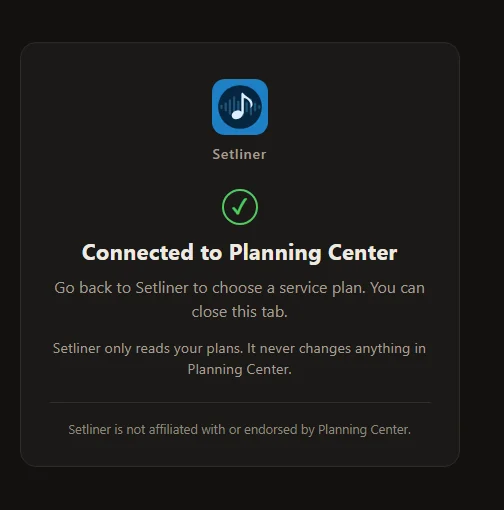
What Setliner™ reads, and where it goes
- Services only. Setliner™ asks for access to Services, never reads your church’s People directory, and never changes anything in Planning Center.
- It reads your church’s name and the plans you are scheduled for (and others you can see, if you look). For the plan you pick, it reads the items, songs, keys, chord charts, copyright and CCLI numbers, and notes if you choose to include them.
- It goes straight from Planning Center to your device. The set and songs are saved in your Setliner™ library like any others, and your sign-in stays on your device, sealed by its key store. Setliner™’s servers receive nothing from Planning Center, except a set’s name if you attach the set to a Team event, and the plan’s date if you create a Team event from the imported plan.
- Some charts from Planning Center may be copies made under your church’s licenses, such as CCLI. They are for that church’s services and activities. Setliner™ marks imported charts as from Planning Center and your church, keeps their copyright and CCLI lines, and does not say which charts came from SongSelect.
Notes, removing charts, and disconnecting
- Item notes come across only if you turn on Include item notes, because notes can be personal.
- Setliner™ removes the notes it imported from a set when Planning Center says you can no longer see the plan, when you disconnect or remove the imported songs, or after 90 days with no check that you still can. Songs, keys and order stay. A plan title you added to the set name stays, and copies in a backup or in your sync service’s version history are not reached.
- To remove imported charts, open Library > Imported from your church. If you leave that church, or its license ends, remove them there.
- Disconnect is in Settings, under Connections. It signs Setliner™ out and asks Planning Center to end the sign-in. Disconnect before you uninstall.
Details are in the Privacy Policy.
Or export charts from Planning Center as files
- Open the song’s arrangement in Services and open the Lyrics & Chords editor.
- Select the download icon to save a PDF. Planning Center also keeps a PDF for each key added to the arrangement.
- For a whole service, on the website: My Schedule, the plan date, Rehearse, Songbook. Check the file types and select Accept to get one PDF.
- For an editable chart, copy the text from the editor. The editor writes chords in brackets, in line with the lyrics, like
[G]Amazing, which Setliner™ reads as ChordPro. - To keep the service order, save a plan report as a PDF.
Import into Setliner™
- Install Setliner™ and choose the folder that holds your songs.
- In the Library, choose Import file(s) and pick one or more .cho, .pro, .chopro, .txt or .pdf files.
- For copied chart text, choose Paste from clipboard.
- For each PDF, choose Convert it to a chart (editable) or Keep it as a PDF.
- To bring in a whole service plan instead, use the sign-in import above.
What comes across and what to check
- Pasted text: lyrics, chords, section labels, and title, artist, key, tempo, time, capo and copyright. Chord diagrams and formatting directives are ignored.
- Converted PDFs: chord placement is a best effort. Read each through before playing from it.
- PDFs kept as PDFs show in the viewer and can be annotated, but can’t be transposed.
- From files, plans, people, rehearsal audio and Music Stand notes don’t come across. The sign-in import above brings in a plan, its notes if you choose them, and CCLI numbers.
Features in Planning Center that are not currently in Setliner™
- Church-wide scheduling across every ministry and service type. Setliner™ Teams (free for up to five people with a license or an active trial; a team bundle adds seats) covers the band and worship team: events, a setlist per event, and any custom role you create.
- Weekly automatic CCLI reporting. Setliner™ doesn’t report to CCLI.
What you get in Setliner™
Planning Center and Music Stand cover some of these too. The features page describes Setliner™, not what Planning Center lacks.
Charts, setlists, on-stage tools, practice tools and optional extras, in a free app that works offline. See the full, current list on the Setliner features page.
Download Setliner™
The free app runs on Windows, macOS, Linux and Android, with iPad coming. It needs no account, and the core features have no time limit. Optional extras come with a 90-day free trial.
Facts about Planning Center checked on its website on 2026-10-18: Use the Lyrics & Chords editor · Lyrics & Chords editor · Get ready for rehearsal · Access Music Stand · Create plan reports · CCLI reporting · Create song reports · SongSelect integration · Music Stand
Planning Center, Music Stand, CCLI and SongSelect are trademarks of their respective owners (Planning Center is a trademark of Ministry Centered Technologies, Inc.), used here only to name the products this guide is about. Setliner, LLC is not affiliated with or endorsed by them. Tell us through the contact page if something here has changed.